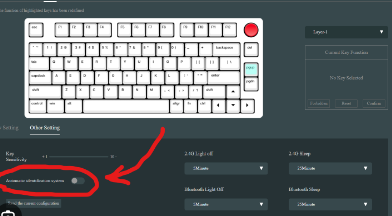

The alt and windows key switched play an integral role in navigating and interacting with your operating system. However, there are scenarios where swapping their functions can improve productivity and user experience, particularly for those who switch between different keyboards or operating systems. This guide walks you through why and how to swap these keys effectively.
Why Swap the Alt and Windows Keys?
Swapping the Alt and Windows keys is particularly useful for users who frequently switch between Windows and macOS. On a Mac keyboard, the Command key (which aligns with the Windows key on PC keyboards) serves primary functions like shortcuts, while the Alt key (similar to the Option key on Mac) is less frequently used. This difference can lead to confusion or inefficiencies when transitioning between the two systems.
Another common reason for swapping these keys is personal preference. Perhaps you find the layout uncomfortable or wish to optimize your workflow for specific software. Whatever the reason, the good news is that this modification is straightforward and reversible.
How to Swap Functions in Windows
If you’re using a Windows PC, you can remap keys with either built-in settings or third-party tools.
Option 1: Using Microsoft’s PowerToys
Microsoft PowerToys is a versatile tool for Windows that allows for custom key mapping. Follow these steps to swap the Alt and Windows keys:
1. Download and install Microsoft PowerToys if you haven’t already.
2. Open PowerToys and select the Keyboard Manager section.
3. Toggle on Enable Keyboard Manager and click on Remap a Key.
4. Under “Key” on the left, select Alt and assign it to function as Windows on the right.
5. Repeat the process selecting Windows to function as Alt.
6. Save your changes, and the swap will take immediate effect.
Option 2: Edit the Windows Registry
For those who prefer a manual approach:
1. Open the Registry Editor (press Windows + R, type “regedit,” and hit Enter).
2. Navigate to HKEY_LOCAL_MACHINESYSTEMCurrentControlSetControlKeyboard Layout.
3. Right-click in the right pane, select New, then click Binary Value. Name it Scancode Map.
4. Enter the appropriate binary code for swapping the Alt and Windows keys. Be cautious; incorrect registry edits can cause system issues.
5. Restart your computer to apply the changes.
How to Swap Functions in macOS
On macOS, swapping these keys is even easier:
1. Open System Preferences and go to the Keyboard section.
2. Click on the Modifier Keys button at the bottom.
3. You’ll see an option to customize the behavior of each modifier key. Simply assign the Windows key to function as the Alt key and vice versa.
Simplify Your Workflow
Swapping the Alt and Windows keys can add consistency to your keyboard shortcuts, improve comfort, and enhance productivity. Whether you’re using third-party tools or built-in solutions, these adjustments ensure a smoother experience, especially for those who bridge multiple systems. Take advantage of these steps today to make your setup truly your own.